
 904
904
SkinBox - Obtaining your Steam API key and Adding Steam Workshop Skins & Collections
SkinBox can automatically import Rust Workshop skins from Steam using your Steam Web API Key. You can import individual skins, entire Workshop collections, or manually add them through the configuration file.Step 1 - Obtain Your Steam Web API Key
SkinBox requires a Steam Web API Key to communicate with the Steam Workshop.If You Already Have an API Key
- Visit the Steam Community API page:
https://steamcommunity.com/dev/apikey - Sign in with your Steam account if prompted.
- If you've already created an API key, it will be displayed on this page.
- Copy the key and paste it into the SkinBox configuration.
Creating a New API Key
If you don't already have one:- Visit:
https://steamcommunity.com/dev/apikey - Sign in to Steam.
- Enter a Domain Name.
If you don't own a website, simply enter: localhost
- Accept the Steam Web API Terms.
- Click Register.
- Steam will generate your API key.
- Copy the key.
Step 2 - Configure SkinBox
Open:oxide/config/SkinBox.json
Locate the Steam API key setting:
"Steam API key for workshop skins (https://steamcommunity.com/dev/apikey)":
Paste your key:
"Steam API key for workshop skins (https://steamcommunity.com/dev/apikey)": "XXXXXXXXXXXXXXXXXXXXXXXXXXXXXXXX"
Save the configuration.
Step 3 - Browse Rust Workshop Skins
Browse the official Rust Steam Workshop:https://steamcommunity.com/app/252490/workshop/
Open any skin or collection and copy its Workshop ID from the URL.
Example skin:
Steam Community :: Error
1234567890
Example collection:
Steam Community :: Error
987654321
Method 1 - Import a Skin Using the Console Command
To import a single Workshop skin, run:skinbox.addskin <WorkshopID>
Example:
skinbox.addskin 1234567890
SkinBox will download the Workshop information and automatically add the skin.
Method 2 - Import a Workshop Collection Using the Console Command
To import every skin from a Workshop collection:skinbox.addcollection <CollectionID>
Example:
skinbox.addcollection 987654321
All supported skins contained within the collection will be imported automatically.
Method 3 - Add Individual Workshop Skins Through the Configuration
You can also manually populate the imported skin list.Locate the Imported Workshop Skins section.
Example:
"Imported Workshop Skins": {
"rifle.ak": [
1234567890,
1234567999
],
"hoodie": [
2233445566
]
The object name (such as rifle.ak or hoodie) is the Rust shortname.
Each Workshop ID listed beneath that item will become available in SkinBox.
You may add as many Workshop IDs as desired.
Method 4 - Add Workshop Collections Through the Configuration
Locate the Workshop collections section:"Workshop Collections": [
Add one or more collection IDs:
"Workshop Collections": [
987654321,
1122334455,
9988776655
]
When SkinBox loads, it will automatically download every supported skin from each collection.
Reload the Plugin
After editing the configuration:o.reload SkinBox
or
oxide.reload SkinBox
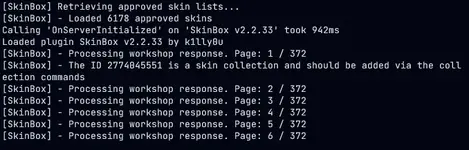
SkinBox will reload the configuration and begin importing any newly added skins or collections.
Permissions
SkinBox uses Oxide/uMod permissions to control who can use the plugin.Grant the permission to a player:
oxide.grant user PLAYERNAME skinbox.use
Grant the permission to a group:
oxide.grant group default skinbox.use
Example:
oxide.grant group vip skinbox.use
Replace default or vip with the desired Oxide group.
Opening SkinBox In-Game
Once the permission has been granted, players can open SkinBox using the configured chat command.By default:
/skinbox
or
/sb
If your configuration uses a different chat command, use that command instead.
Tips
- Only public Steam Workshop items can be imported.
- Workshop IDs are the numbers found after id= in the Workshop URL.
- You can combine manually imported skins with Workshop collections.
- Duplicate Workshop IDs are ignored.
- Collections are an easy way to keep multiple servers synchronized with the same skin library.
- If a Workshop item is removed, hidden, or made private on Steam, SkinBox will no longer be able to import or update it.