
 593
593
GUIDE — How to Configure Raidable Bases on a Rust Server
Beginner Friendly | Updated March 2026 | Works with Oxide & Carbon
Beginner Friendly | Updated March 2026 | Works with Oxide & Carbon
Raidable Bases is one of the most popular plugins for Rust servers — it spawns AI-defended bases on the map that players can raid for loot. However, the configuration is complex and most server admins struggle with it. This guide covers everything from installation to loot tables.
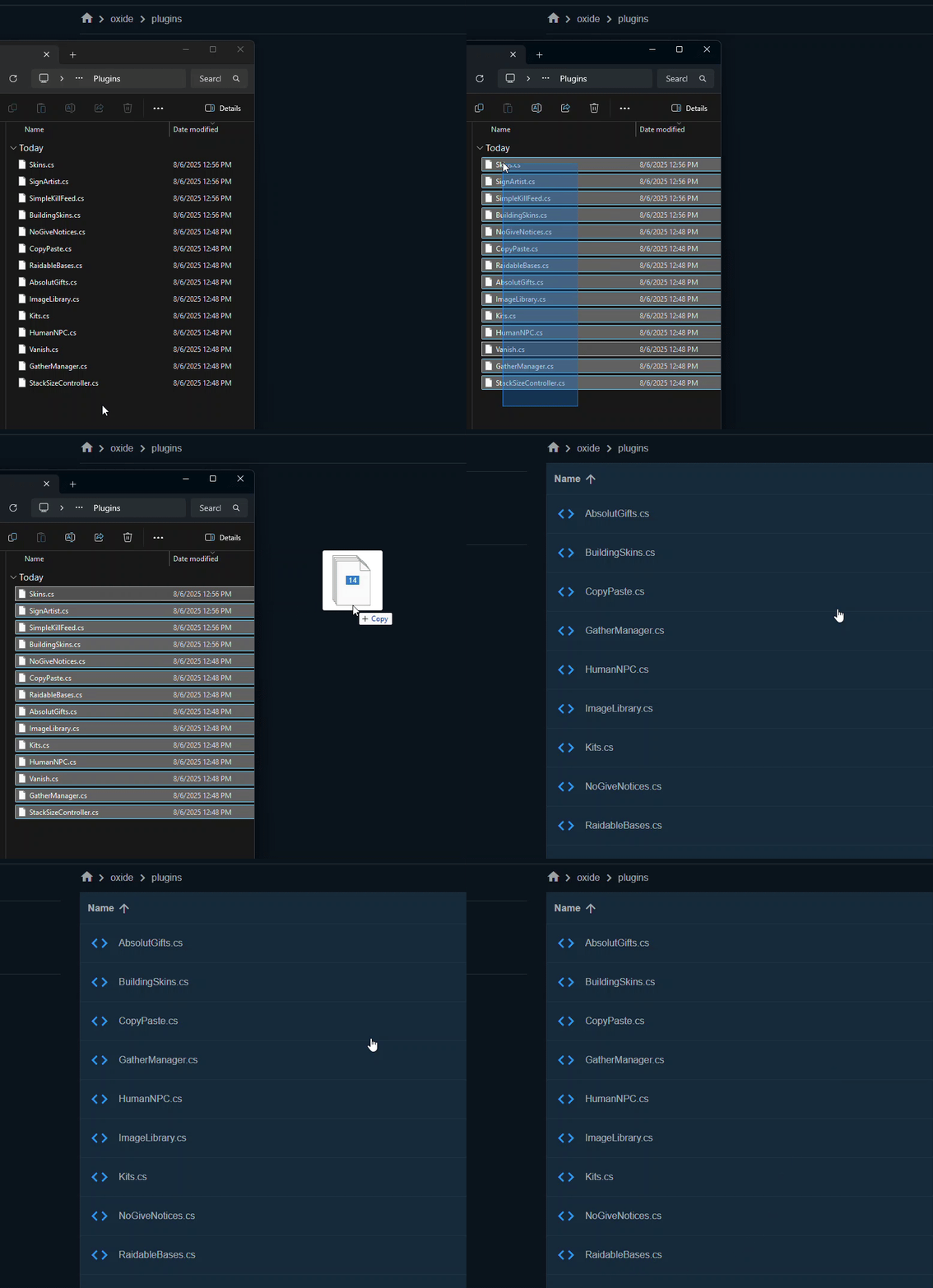
Step 1 — Required Dependencies
Raidable Bases will NOT work without these two plugins installed first:
- CopyPaste — download from uMod.org (free)
- Raidable Bases — premium plugin from Codefling or Lone.Design
Upload both .cs files to your /oxide/plugins/ or /carbon/plugins/ folder before continuing.
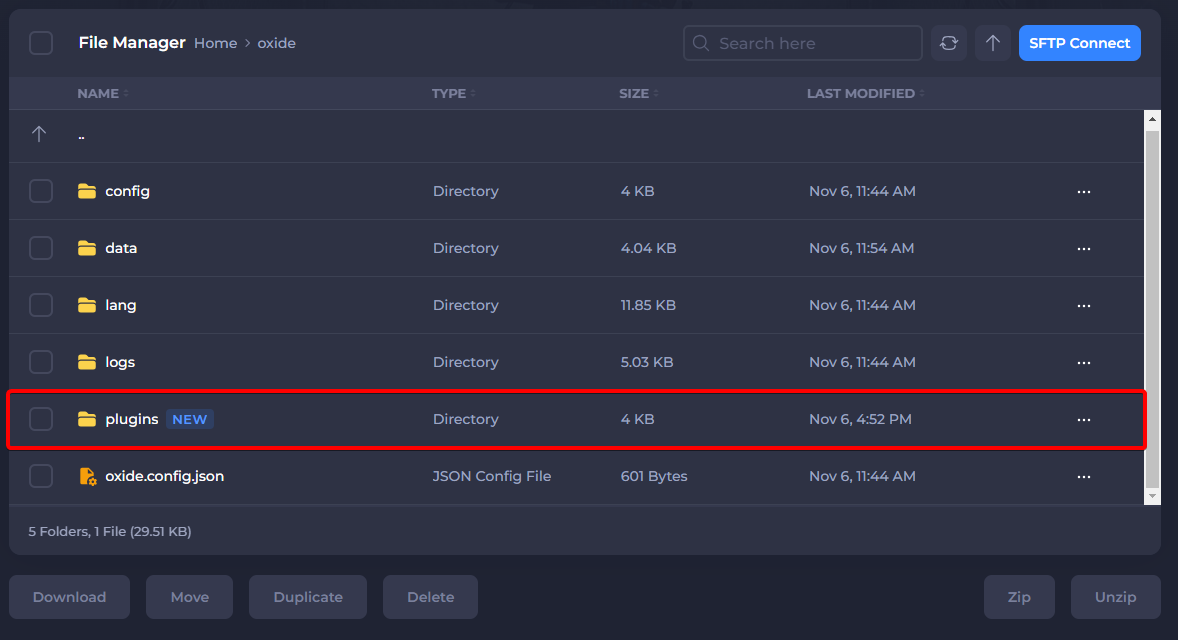
⚠ Important: Raidable Bases does NOT come with any bases. You need to either create your own CopyPaste files or purchase a base package separately.
Step 2 — Folder Structure
After the plugin loads for the first time, these folders are created automatically:
Code:
oxide/data/RaidableBases/
├── Base Loot/          ← loot tables per base name
├── Difficulty Loot/    ← loot tables per difficulty
│   ├── Default_Loot.json
│   ├── Easy.json
│   ├── Medium.json
│   ├── Hard.json
│   ├── Expert.json
│   └── Nightmare.json
└── Profiles/           ← base configuration profiles
    └── Easy.json
Carbon users: same structure but under carbon/data/RaidableBases/
Step 3 — Add Your First Base
- Build or find a base you want to use in-game
- Stand outside the base at foundation level
- Run this command in chat to save it:
Code:
/copypaste save MyBaseThis creates a file at oxide/data/copypaste/MyBase.json
Now assign it to a Raidable Bases profile. Open oxide/data/RaidableBases/Profiles/Easy.json and add your base name to the list:
Code:
{
  "Buildings": {
    "MyBase": {
      "Enabled": true,
      "Difficulty": 0,
      "PVP Mode": false,
      "Max Health Multiplier": 1.0,
      "Amount of NPCs": 3
    }
  }
}
Step 4 — Configure Spawn Settings
Open oxide/config/RaidableBases.json and find the Events section:
Code:
"Scheduled Events": {
  "Enabled": true,
  "Every Min Seconds": 3600,
  "Every Max Seconds": 7200,
  "Max Scheduled Events": 3,
  "Max Scheduled Events Per Difficulty": 1
},
"Maintain Events": {
  "Enabled": false,
  "Max Maintained Events": 5
}| Setting | What it does |
|---|---|
| Scheduled Events | Spawns a random base every X seconds |
| Maintain Events | Always keeps X bases on the map |
| Max Scheduled Events | How many bases can be active at once |
| Every Min/Max Seconds | Random interval between spawns |
Tip: Use Maintain Events for PvE servers — it keeps the map always populated with bases.
Step 5 — Set Up Loot Tables
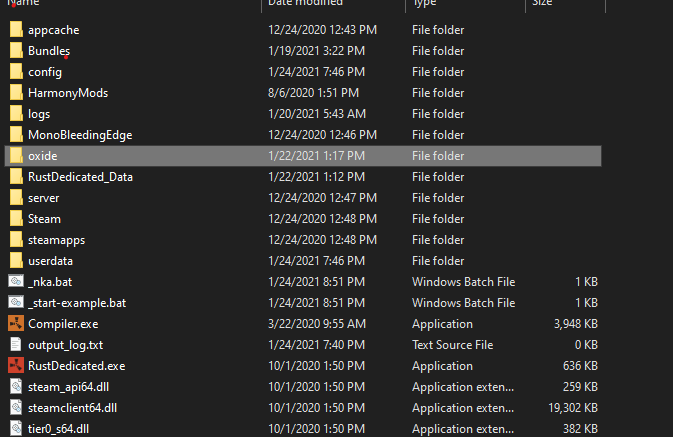
Loot is controlled by files in oxide/data/RaidableBases/Difficulty Loot/
Open Default_Loot.json and edit it to add your desired items:
Code:
[
  {
    "shortname": "rifle.ak",
    "amount": 1,
    "skin": 0,
    "amountMin": 1
  },
  {
    "shortname": "explosive.timed",
    "amount": 3,
    "skin": 0,
    "amountMin": 1
  },
  {
    "shortname": "scrap",
    "amount": 500,
    "skin": 0,
    "amountMin": 200
  }
]
Loot priority order:
- Base Loot folder — if a file matches the base name, it is used first
- Difficulty Loot folder — used based on difficulty level
- Default_Loot.json — fallback if nothing else matches
Step 6 — Difficulty Settings
Raidable Bases has 5 difficulty levels (premium version):
| Level | ID | Recommended Use |
|---|---|---|
| Easy | 0 | New players, low loot |
| Medium | 1 | Standard gameplay |
| Hard | 2 | Experienced raiders |
| Expert | 3 | End-game challenge |
| Nightmare | 4 | Maximum difficulty |
Each difficulty has its own loot table file in the Difficulty Loot folder. The harder the base, the better the loot you should put in its file.
Step 7 — Admin Commands
Code:
/rb easy        # manually spawn an easy base near you
/rb medium      # spawn a medium base
/rb hard        # spawn a hard base
/rb despawn     # despawn the nearest raidable base
/rb debug       # shows spawn point diagnostics
/rb version     # shows plugin version
⚠ Always run /rb debug first if bases are not spawning — it tells you exactly why and where the problem is.
Troubleshooting
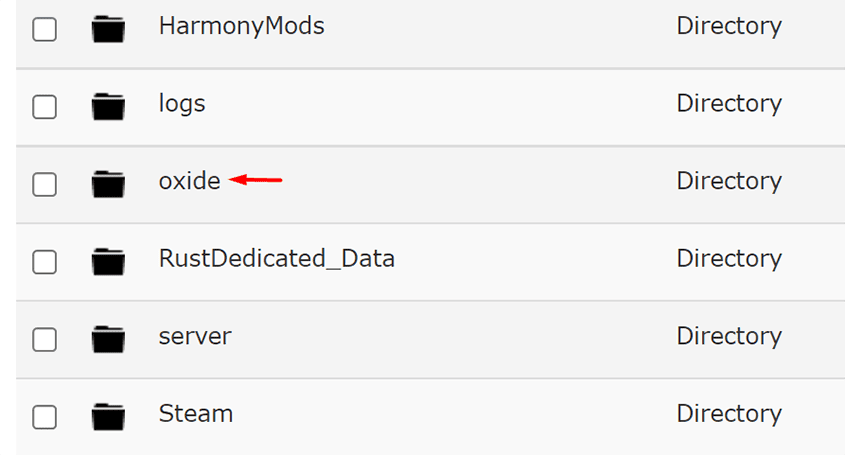
Bases are not spawning?
- Run /rb debug in-game — it shows all spawn point issues
- Make sure your map has flat terrain — bases need elevation tolerance
- Check oxide/logs/ for error messages
- Verify CopyPaste files exist in oxide/data/copypaste/
Loot is not appearing?
- Check that your loot table JSON is valid — use jsonlint.com to verify
- Make sure Amount Of Items To Spawn is set in the profile config
- Loot file names must match exactly — case sensitive
NPCs not attacking players?
- Check that Amount of NPCs is greater than 0 in your profile
- Some NPC plugins conflict — check your logs for hook errors
Summary
- Install CopyPaste and Raidable Bases plugins
- Save bases using /copypaste save BaseName
- Add base names to a Profile in oxide/data/RaidableBases/Profiles/
- Edit loot tables in oxide/data/RaidableBases/Difficulty Loot/
- Enable Scheduled Events or Maintain Events in the config
- Use /rb debug to diagnose spawn issues
If this guide helped you — drop a like  More Rust server guides coming soon.
More Rust server guides coming soon.