
 580
580
Running a modded Rust server allows you to add features like economy systems, teleport commands, UI interfaces, and automated events. In this guide I will show you step-by-step how to install plugins using Oxide/uMod.
This tutorial is beginner friendly and works for most hosting panels.
Before installing plugins you must install Oxide.
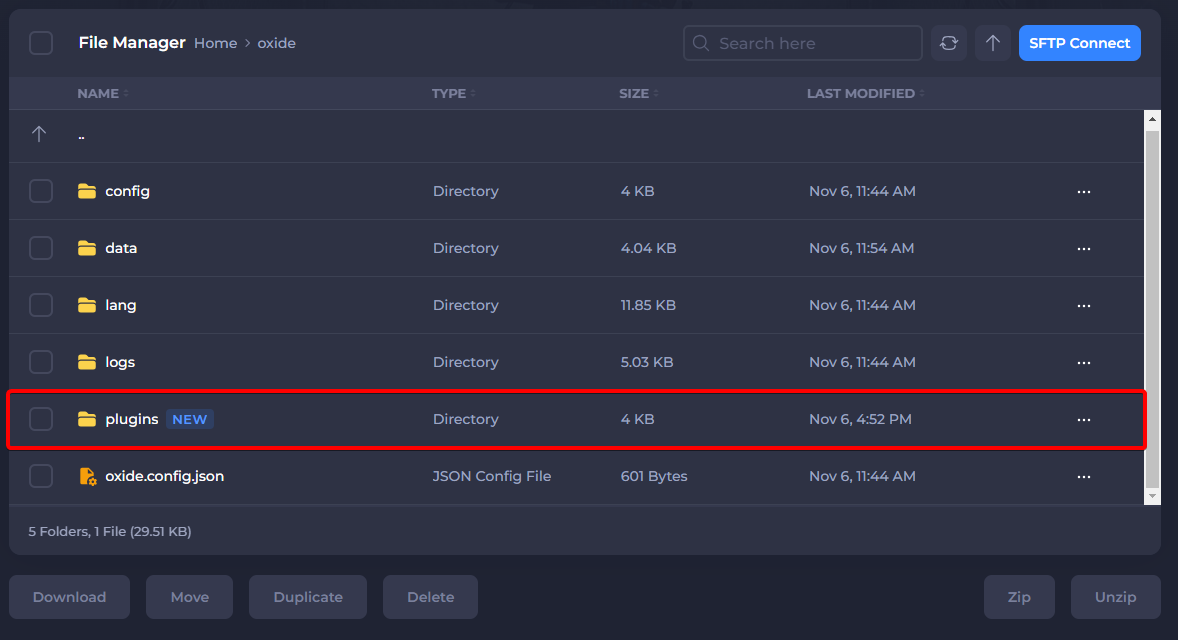
When Oxide is installed correctly, your server directory will contain a folder called:
/oxide
Inside that folder you will see directories such as:
plugins
config
data
logs


If you do not see the oxide folder, start your Rust server once. Oxide automatically generates these folders on the first launch.
Most Rust plugins come in the format:
PluginName.cs
Example plugins:
Make sure you download Rust plugins only, because uMod supports many different games.
Upload the .cs plugin file into the following folder:
/oxide/plugins
Example structure:
RustServer/
oxide/
plugins/
BetterChat.cs


After uploading the plugin you can either:
Open your RCON or server console and type:
oxide.reload PluginName
Example:
oxide.reload BetterChat
If everything is correct, the server will show:
Loaded plugin BetterChat
Most plugins automatically create configuration files inside:
/oxide/config
Example:
BetterChat.json
Open the file using a text editor and modify the settings to fit your server.
Each plugin has different configuration options.
If your plugin does not load, check these things:
1. Plugin errors
Look inside:
/oxide/logs
2. File name issues
Browsers sometimes download plugins as:
PluginName (1).cs
Rename the file to remove extra numbers or spaces.
3. Missing dependencies
Some plugins require other plugins to work correctly.
Installing Rust plugins is simple once Oxide is installed.
Quick summary:
Your Rust server is now ready for custom plugins.
If this guide helped you, feel free to react or follow.
More Rust server tutorials coming soon.
This tutorial is beginner friendly and works for most hosting panels.
Step 1 — Make Sure Oxide/uMod Is Installed
Before installing plugins you must install Oxide.
When Oxide is installed correctly, your server directory will contain a folder called:
/oxide
Inside that folder you will see directories such as:
plugins
config
data
logs
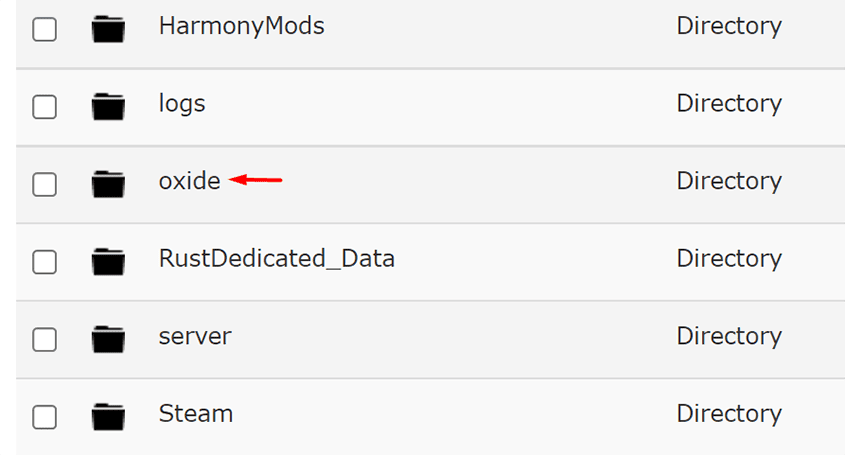
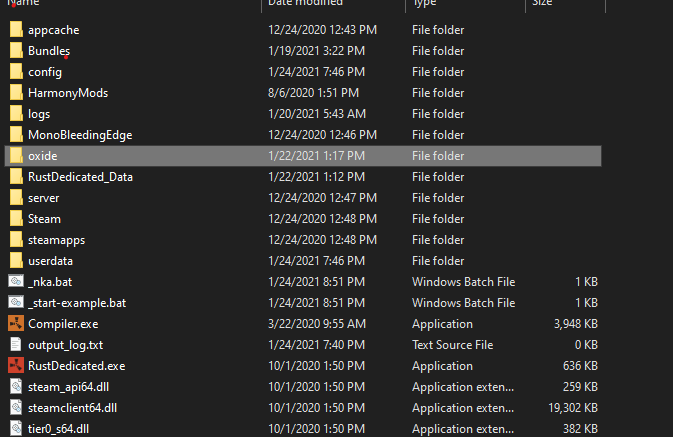
If you do not see the oxide folder, start your Rust server once. Oxide automatically generates these folders on the first launch.
Step 2 — Download a Plugin
Most Rust plugins come in the format:
PluginName.cs
Example plugins:
- BetterChat
- RaidableBases
- GatherManager
- ServerInfoMenu
Make sure you download Rust plugins only, because uMod supports many different games.
Step 3 — Upload the Plugin
Upload the .cs plugin file into the following folder:
/oxide/plugins
Example structure:
RustServer/
oxide/
plugins/
BetterChat.cs
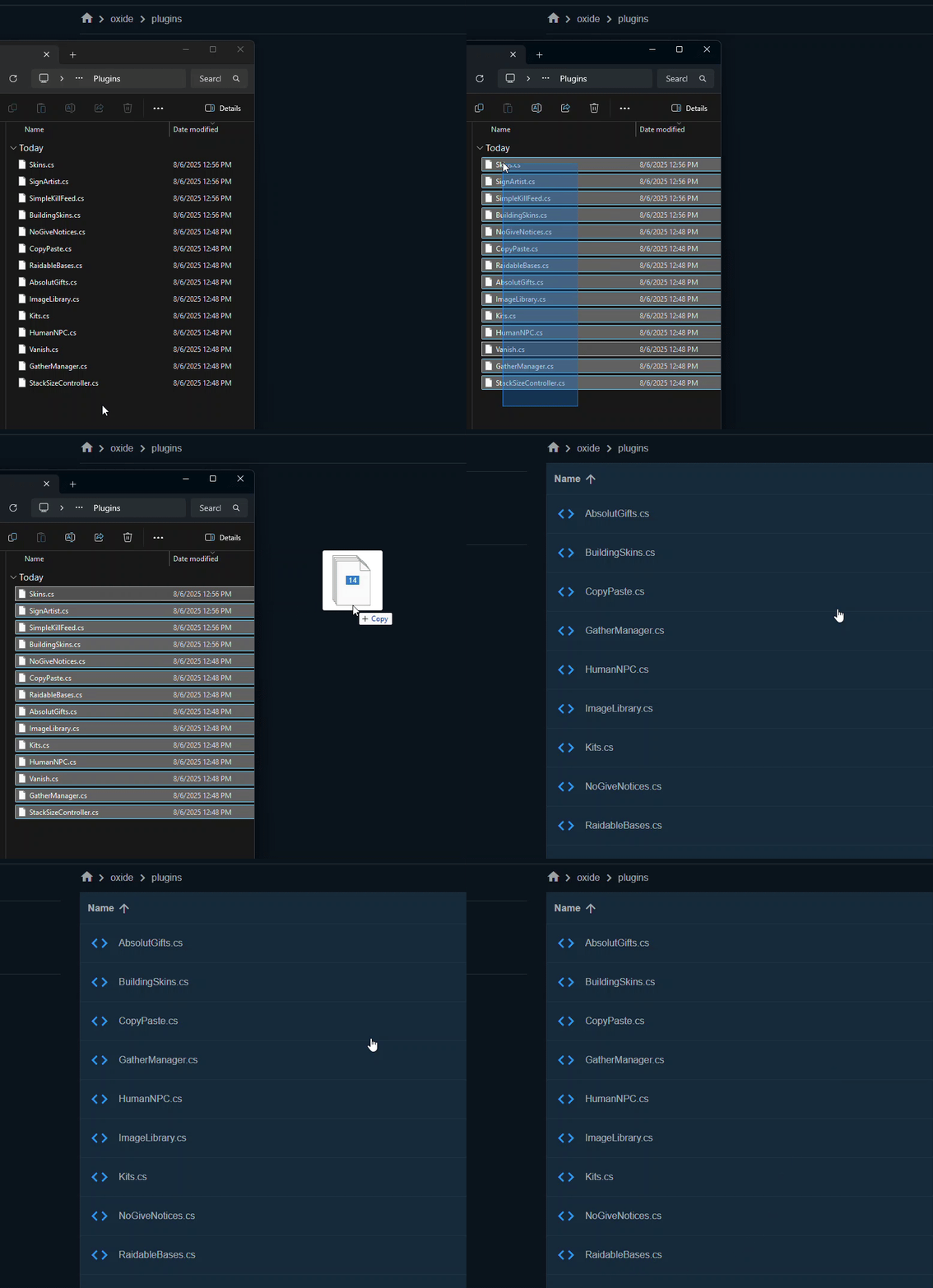
After uploading the plugin you can either:
- restart the server
- reload the plugin manually
Step 4 — Load the Plugin
Open your RCON or server console and type:
oxide.reload PluginName
Example:
oxide.reload BetterChat
If everything is correct, the server will show:
Loaded plugin BetterChat
Step 5 — Configure the Plugin
Most plugins automatically create configuration files inside:
/oxide/config
Example:
BetterChat.json
Open the file using a text editor and modify the settings to fit your server.
Each plugin has different configuration options.
Troubleshooting
If your plugin does not load, check these things:
1. Plugin errors
Look inside:
/oxide/logs
2. File name issues
Browsers sometimes download plugins as:
PluginName (1).cs
Rename the file to remove extra numbers or spaces.
3. Missing dependencies
Some plugins require other plugins to work correctly.
Conclusion
Installing Rust plugins is simple once Oxide is installed.
Quick summary:
- install Oxide/uMod
- download plugin .cs file
- upload to /oxide/plugins
- reload plugin or restart server
- edit configuration
Your Rust server is now ready for custom plugins.
If this guide helped you, feel free to react or follow.
More Rust server tutorials coming soon.